From Classroom to TpT: Free Tools for Creating Teacher Resources


As part of the the Six-Week Creator Challenge, I promised to share free tools that I use to create and sell digital products online. This week focuses on TpT (Teachers Pay Teachers), but even teachers who don’t plan to sell on TpT will find these tools useful.

If youโ€™re a teacher or educator looking to turn your classroom resources into digital products, you donโ€™t need expensive design software to get started. In fact, some of the most popular products on Teachers Pay Teachers (TpT) are created with tools you already know and love, such Google Docs and Google Slides. For those of you who don’t like Google products, I will be addressing other free tools, such as Canva and MS Office tools, in future posts.

However, I love Google’s free suite of tools, especially Docs and Slides. Whether you’re building engaging graphic organizers, editable writing prompts, or classroom decor, Google tools can help you create polished, professional-looking products with ease. Hereโ€™s how to get started.


Step 1: Choose the Right Tool for Your Product

Google Docs is perfect for:

  • Printable worksheets
  • Reading passages
  • Lesson plans or unit outlines
  • Instructional guides or templates

Google Slides is great for:

  • Interactive lessons
  • Task cards or flashcards
  • Anchor charts
  • Student activities that require visual organization
  • Editable classroom signs or posters

The best part is that you can also combine both toolsโ€”use Docs for written instruction and Slides for visuals.


Step 2: Set Up Your Document or Slides for TpT Use

  • Page Setup:
    • For printable products, change the slide/page size to standard 8.5 x 11 inches (File > Page Setup > Custom).
    • Use landscape or portrait depending on your design needs.
  • Branding & Design:
    • Use consistent fonts, colors, and a simple logo or footer with your name/store link.
    • Add a cover page, directions page, and credit page to your product.
    • Include terms of use and citation for any graphics or fonts used.
  • Make it Editable (Optional):
    • Create editable text boxes in Slides so teachers can customize parts of the product.
    • In Docs, use tables or comments to guide users where they can modify content.

Step 3: Export, Bundle, and Upload

  • When your product is complete:
    • Export as a PDF for secure, print-ready versions.
    • If offering an editable version, include the Google Docs or Slides link using a force-copy URL.
    • Bundle PDFs and editable versions in a ZIP file if needed.
  • Upload your product to TpT:
    • Write a clear, keyword-rich product title and description.
    • Include preview images (screenshots of your Doc/Slides).
    • Tag relevant grade levels and standards.

Final Tips for Success

  • Start with resources you already use in class. If it worked for your students, chances are other teachers will find it valuable too.
  • Keep your formatting simple and classroom-tested.
  • Reuse templates! Save time by reusing Docs/Slides layouts across multiple products.

Creating high-quality TpT products doesnโ€™t require fancy design software. With Google Docs and Slides, you can create resources that are clean, customizable, and totally teacher-friendly.

Short Story Analysis Tool-Kit

I created the product below, in my TpT store, using Google Docs + Canva (for the cover)
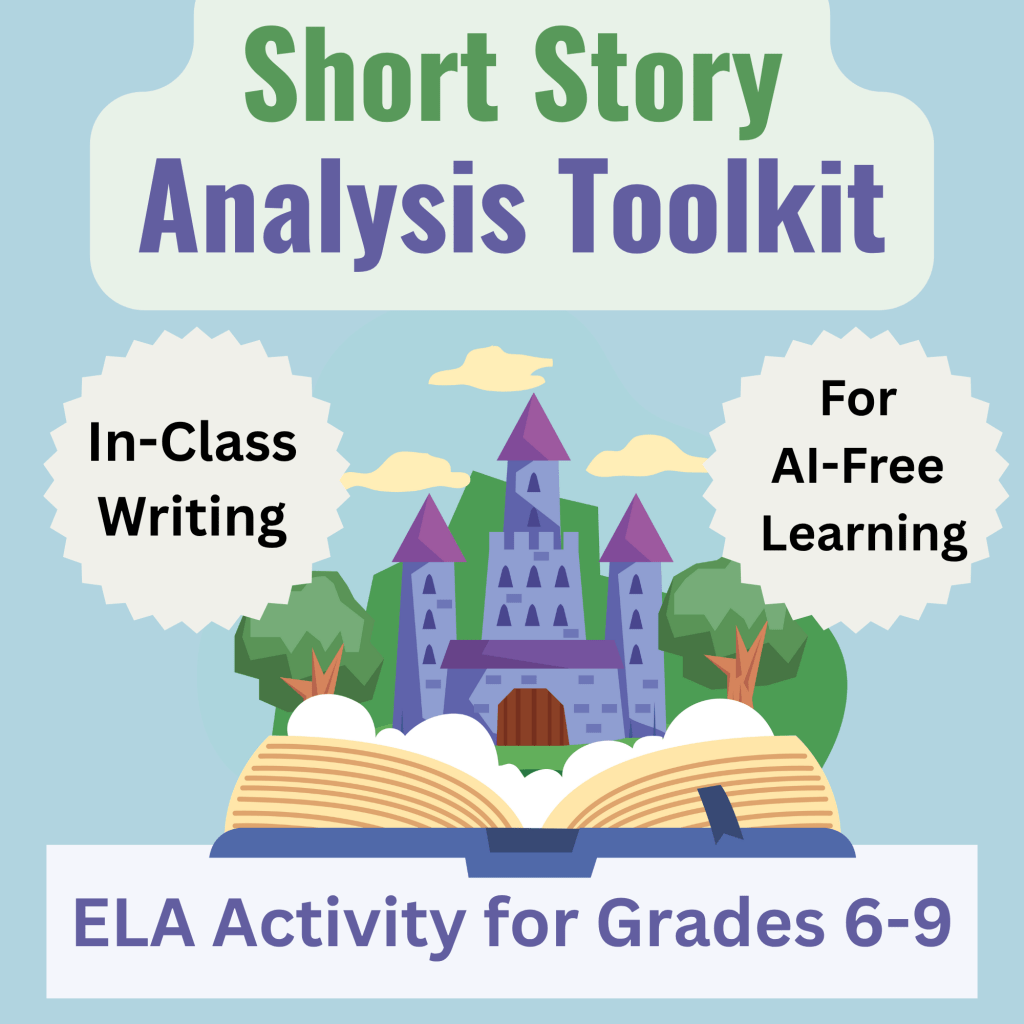
Short Story Analysis Toolkit (link to TpT)

Know Your Audience


This week is all about teachers! For Week One of the Six-Week Creator Challenge I will focus on Teachers Pay Teachers (which is now called TpT), which is a platform for creating and sharing lesson plans and teaching materials.

When creating the Six-Week Creator Challenge I decided to focus on ONE platform per week, to help me stay focused, and to force me to start creating content for that platform. I will then continue to create content for that platform consistently (at least once per week) once I move on to explore the other platforms. As I mentioned in Sunday’s post, I will then share my progress and metrics each week, as well as discuss the pros and cons of each platform. At the end of the six weeks I’ll do a big write up about my overall impressions and progress.

I’m not going to write about how to get started on Teachers Pay Teachers, you can read about that in this post. Instead, I’m going to share details about my overall process, as well as steps I will take to improve growth and engagement on that platform (and hopefully revenue!).

I’ve been on TpT for several years now, but have never put much time into it, nor approached it with a coherent strategy. One of the reasons I created this challenge to was to learn about each platform and make an intentional effort to improve by creating content consistently and getting to know the ins and outs of the platform’s (and my niche’s) audiences and algorithms.

Why Knowing Your Audience is So Important

Knowing your audience is essential when creating content for online platforms because it allows you to tailor your message, tone, and delivery to meet the specific needs, interests, and expectations of the people you’re trying to reach. Understanding who your audience is helps you choose the right format, language, and content strategy to engage them effectively. It also increases the likelihood that your content will resonate, be shared, and achieve its intended purpose, whether that’s to inform, entertain, inspire, or drive action. Without a clear understanding of your audience, even the most well-crafted content can fall flat.

Find a Problem to Solve

One key factor in thinking about your audience is to help them solve a problem by offering a product, tutorial, or solution that meets their needs. And to go above and beyond! (“Take my money!”). For TpT, this involves thinking about teachers in my niche, which is creating ELA (English Language Arts) content (hence the title of this blog: ELA Source).

Luckily for me, ELA teachers have a lot of problems to solve, ha ha. From worrying about plagiarism and AI, to struggling with student behavior and enagement (what to do about phones?), to finding resources on the best ways to teach reading, writing, and grammar.

Find Your Niche: Play to Your Strengths

By focusing on this audience and this niche, I’m playing to my strengths. I have a BA in English, an MA in Literature, and a Doctorate in Curriculum Design. I’ve also been a teacher at the middle school, high school, and college levels for 30 years.

Goals for this Week

This week I’m going to focus on creating products that help teachers avoid plagiarism and AI by engaging them in the research and writing process in the classroom, which I feel very strongly is the solution to avoiding AI (more on this in another blog post).

Tomorrow I will post about how I use free online tools to create and sell digital content and I’ll give you a peek at the resource I’m creating for TpT. Be sure to subscribe if you’d like to follow along for this challenge. Itโ€™s free to subscribe and I donโ€™t share your emails with anyone. ๐Ÿ™‚

Side-Hustle Sunday


Welcome to Side-Hustle Sunday! Each week in this weekly round-up I will discuss:

  1. Current updates and metrics across all platforms
  2. A review of the platform I focused on for the previous week (I will skip this the first week and instead provide a brief overview of all of the platforms I post on).
  3. What I accomplished
  4. Lessons learned
  5. Next weekโ€™s platform + goals

Platforms:

For several years now, I’ve been exploring and building on a variety of platforms in an attempt to build and audience and establish a consisten income stream.

Each of these platforms have different strengths, audiences, and content types. Hereโ€™s a quick tour of where Iโ€™m posting and why:


Teachers Pay Teachers (TpT)

What it is: An online marketplace where educators sell lesson plans, activities, assessments, and classroom resources.
Why I use it: I can turn my existing teaching materials into income by sharing them with other educators.
Best for: Teachers, tutors, and curriculum creators in Kโ€“12 or higher ed.


Etsy

What it is: A creative marketplace for handmade goods, vintage finds, andโ€”more recentlyโ€”digital downloads like planners, journals, and printables.
Why I use it: Itโ€™s great for selling beautiful, useful products with a strong visual or aesthetic appeal.
Best for: Printables, digital planners, classroom decor, wall art, and niche kits.


Instagram

What it is: A visual-first social media platform used for branding, marketing, and community building.
Why I use it: Itโ€™s a great place to showcase behind-the-scenes content, quick tips, and build connections with other creators.
Best for: Growing your audience, cross-promoting products, and showing personality.


WordPress (My Blog)

What it is: A blogging and website platform that lets you publish long-form content, tutorials, and updates.
Why I use it: Itโ€™s my content home baseโ€”great for SEO, in-depth posts, and linking to my products.
Best for: Evergreen content, long-form tutorials, and resource roundups.


Pinterest

What it is: A visual discovery engine where users save and share ideasโ€”especially for education, crafts, home, and DIY.
Why I use it: My blog and products can gain long-term traffic through visually appealing pins.
Best for: Teachers, creatives, and anyone with visually-driven content or tutorials.


Royal Road + KDP (Self-Publishing)

Royal Road: A free web serial platform where you can publish your fiction one chapter at a time.
KDP (Kindle Direct Publishing): Amazonโ€™s self-publishing service for eBooks and print books.
Why I use them: Royal Road is great for building a reader base, while KDP allows me to sell completed books or journals.
Best for: Writers of fiction, fanfic, low-content books, and serial storytellers.


YouTube

What it is: A video-sharing platform used for tutorials, vlogs, reviews, and educational content.
Why I use it: YouTube lets me reach visual learners and build trust through face-to-face (or voice-to-voice) content.
Best for: Teaching, documenting your journey, and creating content with long-term value.


Course Platforms (Udemy, Gumroad, etc.)

Udemy: A structured, student-facing course platform where you upload video lessons and reach learners through Udemyโ€™s marketplace.
Gumroad: A flexible storefront where you can sell mini-courses, ebooks, templates, and moreโ€”directly to your audience.
Why I use them: These platforms help me turn knowledge into income by packaging what I know into teachable, sellable formats.
Best for: Creators with teachable skills or digital products.


My Current Metrics:

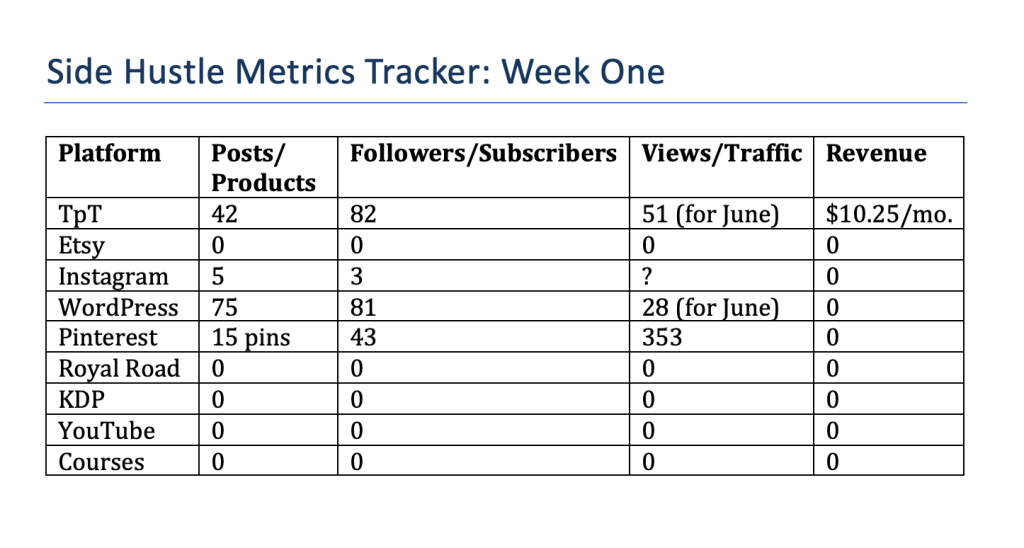
Below is a table with all of the platforms I intend to publish on (I won’t be focusing on all of these during the six week challenge, but will update this table every week). As you can see, for some platforms, like Etsy and YouTube, I haven’t started posting products and videos yet, nor have I created any courses, but I’m including them in these metrics because I want you to have a real-time record of my progoress.

Week One: TpT (Teachers Pay Teachers)

This week, Iโ€™ll be focusing on Teachers Pay Teachers (TpT), which is a platform designed for educators to buy, sell, and share classroom resources. If youโ€™re a teacher, tutor, or curriculum creator, TpT is a fantastic way to turn your hard work into passive income by listing the lessons, activities, and worksheets you already use in your classroom. Itโ€™s beginner-friendly, especially if you start with free tools like Google Slides or Canva to design your products.

My goal for the week is to create one product from scratch and take steps to improve my overall metrics, while at the same time walking you through the process of how I create products using free tools and how I improve my metrics and build my audience.

The Creator Mindset: Create Something You Love


I’ve been a teacher for 25 years, a writer all my life, and a “content creator” since 2021. It has come to my attention the internet if full of massive amounts of low-quality garbage. Too many people are trying too hard to get rich quick. It reminds me of all of the sales scammers of my childhood, the MLMs, the mail-in envelope-stuffing business scams–trying to make a quick buck is a tale as old as time.

I’ve since learned that you have to create something that YOU want. I no longer chase the mythical audience. I’m not sure how to find or describe or anlalyze or understand an audience, I think the whole concept of “audience” is something of a myth. Most people who have created something great were simply creating something they loved.

In the past 3-4 years I’ve had modest success on Fiverr and Teachers Pay Teachers (TpT) and I’ve created a tiny following on this blog (I have 80 subscribers!). My highest month of earnings is about $800 and my lowest is $24. But I’m learning, I’m ready to expand this, and I have ideas for what to do next.

First and foremost, I’m a teacher. One of my most lucrative clients on Fiverr just likes working with me because I know how to teach her things. As a teacher, both at the secondary (middle and high school) and college levels, I’ve learned how to develop high-quality content, how to capture and hold an audience’s attention, and how to assess my abilities. It feels very natural to teach people how to reach their goals and acheive their dreams as well.

Under the Creator Mindset umbrella, I will be creating courses and tutorials on how to create lucrative side-hustle, how to get started selling on Fiverr, Etsy, TpT, and Gumroad, how to use Canva to create templates, how to find a niche and create courses on Udemy and other platforms, how to create long-form content for Medium and YouTube, how to repurpose that content for Instagram and Pinterest, and how to help others and create value.

I’m not the least bit interested in chasing cheap thrills and quick money through casino-washing, credit-card churning, surveys, affiliate marketing, or drop-shipping. All of those things bore the crap out of me.

I’ve decided that I will also be offering most of my stuff for free, giving you access to as much high-quality content and real hands-on tutorials and guidance as I have time to make. Only after I’ve successfully helped a lot of people with my content over the long term will I start bundling it for sale (or offering other ways for people to support my content.

So come along for the ride! I’m a good writer and storyteller with a genuine love of teaching, consulting, and coaching. I have many digital media skills like writing, illustration, photography and editing, teaching and public speaking, coaching, designing effective and engaging learning experiences, and creating sincere and authentic content.

3 Tips for Improving Sales on TpT


If you’re just getting started on Teachers Pay Teachers, you might be frustrated with slow sales. It can sometimes take months to make your first sale, especially if you start your store during slow times. Luckily, this is one the busiest times on Teachers Pay Teachers, and I’ve seen great results in my store from making the following changes:

  1. Make more products! If you following other TpT creators or participate in TpT forums, you’ll hear this advice again and again, but it really works! When you post your first 5-10 products, it can be easy to give up if you’re not getting sales, but remember that your competing agains thousands of stores and millions of products. However, I have found that as I increase my product numbers, my sales go up consistently. I’ve heard that 50 products is that magic number, and that’s my current goal. Some stores have hundreds of products. Each new product you create increases your changes of having your products show up in search.

  2. Learn how to write long-tail search terms and create long titles. Keep in mind that the title that you list for search does NOT have to be the same as the title that’s on your cover (similar to creating searchable titles on YouTube vs. clickable thumbnails). One of my most popular products, the Passport Project, increased in sales when I changed the title from Passport Project to Passport Project: Editable Passport Template and Maps for Teaching Geography.

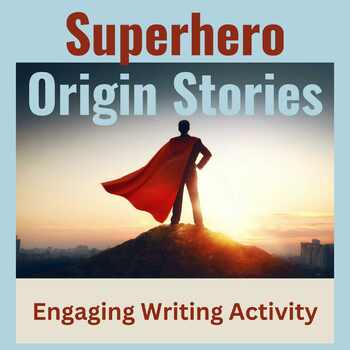
  3. Make the text on your covers as large as possible. Do NOT try to put information about your product on the cover. If you get the buyer’s attention with your cover, they will click on it and read the description. My tip is after you create your cover to look at it on your phone. Many teachers shop on TpT on their phones, and if you can’t read your product title on your cover, it’s too small. Here is an example of a cover that I use on a very successful product, Superhero Origin Stories.

I was astonished at how quickly my sales picked up after I implemented these three simple tips for improving my store.

Click here if you’re interested in following my store on Teachers Pay Teachers.

The Essential Guide to Writing a Thesis Statement


Why is teaching students to write an effective thesis statement is so important?

In the realm of academic writing, the thesis statement is the compass that guides an essay’s direction and purpose. It serves as a roadmap for both the writer and the reader, ensuring that the argument remains focused and coherent throughout. Teaching students to craft an effective thesis statement is not just a pedagogical formality; it is a foundational skill that equips them with the tools necessary for clear and persuasive communication. In this blog post, we will explore the significance of teaching students how to write an effective thesis statement and its far-reaching implications.

  1. Clarity and Focus

An effective thesis statement is a concise declaration of the central argument or main point of an essay. It sets the tone for the entire piece of writing and helps students maintain clarity and focus in their work. When students learn how to formulate a clear thesis statement, they are better equipped to stay on track and avoid wandering off-topic. This not only makes their writing more coherent but also enhances their ability to convey complex ideas succinctly.

  1. Critical Thinking

Crafting a thesis statement requires students to engage in critical thinking. They must analyze the topic, identify the key components of their argument, and decide on the most compelling way to present it. This process encourages students to develop and refine their analytical skills, enabling them to approach problems and topics in a more systematic and thoughtful manner.

  1. Structure and Organization

An effective thesis statement serves as the backbone of an essay’s structure. It dictates the organization of the paper and helps students structure their thoughts logically. When students understand how to write a strong thesis statement, they are better equipped to create well-organized essays with a clear introduction, body, and conclusion. This skill is invaluable not only in academic writing but also in various professional contexts.

  1. Persuasive Writing

A well-crafted thesis statement is essential for persuasive writing. It allows students to present their arguments with conviction and authority, making it more likely that readers will be persuaded by their ideas. Teaching students how to develop a strong thesis statement empowers them to be more persuasive writers, a skill that is valuable in debates, speeches, and any situation where one must advocate for a particular viewpoint.

  1. Research Skills

Effective thesis statements often require research and evidence to support the argument. Teaching students to write a thesis statement encourages them to delve into research, evaluate sources, and incorporate relevant information into their essays. This fosters a habit of critical inquiry and resourcefulness, skills that are crucial in the information age.

  1. Adaptability

The ability to create an effective thesis statement is a transferable skill that extends beyond the classroom. Whether students are crafting essays, reports, business proposals, or even social media posts, the ability to concisely articulate a central point is invaluable. Teaching this skill prepares students for success in a wide range of personal and professional endeavors.

The Case for Rubrics in the Writing Classroom


As educators, we understand the importance of providing constructive feedback to help our students grow academically and develop essential skills. One powerful tool that can significantly enhance the writing assessment process is the use of rubrics. Rubrics offer a structured and transparent way to evaluate student writing, providing both teachers and learners with numerous benefits. In this blog post, we will explore the advantages of using rubrics to evaluate writing and how they can lead to improved student outcomes.

  1. Clarity and Consistency

Rubrics provide teachers with clear criteria and expectations for evaluating writing assignments. By defining specific elements like content, organization, language use, and mechanics, rubrics ensure that all students are evaluated based on the same set of standards. This consistency eliminates ambiguity and allows students to understand precisely what is expected of them, setting them up for success.

  1. Targeted Feedback

One of the most significant advantages of rubrics is their ability to guide teachers in giving targeted feedback. Rather than merely providing a final grade, rubrics break down the assessment into different categories, enabling instructors to pinpoint areas of strength and weakness in a student’s writing. This targeted feedback empowers students to focus on specific aspects of their writing that need improvement, fostering a growth mindset and a desire for continuous learning.

  1. Student Engagement and Self-Assessment

When students are aware of the criteria by which their writing will be evaluated, they become more engaged in the writing process. Rubrics enable them to self-assess their work before submission, allowing for revisions and self-reflection. Students are encouraged to take ownership of their learning, as they can measure their progress against the rubric’s standards and identify areas for improvement independently.

  1. Facilitating Peer Review

Using rubrics in the classroom also enhances the effectiveness of peer review sessions. When students evaluate each other’s writing using a common rubric, they gain a better understanding of the assessment criteria and learn to provide constructive feedback to their peers. Peer review becomes a collaborative learning experience, as students exchange ideas, strategies, and suggestions for improvement.

  1. Time Efficiency

For teachers, grading numerous writing assignments can be time-consuming. However, rubrics streamline the evaluation process, making it more efficient. With clearly outlined criteria, teachers can quickly identify and assess each aspect of a student’s writing without the need for prolonged deliberation. This time efficiency allows educators to dedicate more attention to providing detailed feedback, fostering a stronger teacher-student connection.

Conclusion

Incorporating rubrics into the writing assessment process can significantly benefit both teachers and students. By providing clarity, consistency, and targeted feedback, rubrics enhance student engagement, self-assessment, and peer collaboration. Furthermore, their use promotes a growth mindset and a more efficient grading process for teachers. As we strive to nurture our students’ writing skills and overall academic development, rubrics prove to be a valuable tool in achieving these goals. Let us embrace the power of rubrics in the classroom and witness the positive impact they can have on our students’ writing journey.

My rubric-creation resource is now only $1 on TpT! It contains a fully-editable rubric template in MS Word, along with a sample ELA rubric, guide to creating rubrics, and sample rubric criteria. Check it out:

Congratulations to our Giveaway Winner

The winner of the random drawing for a $25 Teachers Pay Teachers (TpT) Gift Card is Joanna from JoannaESL.com . Be sure to check out her teaching blog! It has interesting articles and amazing resources.

If you’re a new follower, remember that I will do a once-a-month giveaway and also to celebrate major milestones, and if you haven’t started followng my blog, be sure to subscribe below and you’ll never miss a post.

TpT Gift Card Giveaway is Today


To celebrate going from 0-25 subscribers/followers (now 26!) I will be chosing a follower at random to receive a $25 gift card from Teachers Pay Teachers (TpT). I will notify the winner later today.

If you’re not already following, I will do a monthly giveaway of free products or gift cards, plus a special giveaway for each new milestone (the next is 50 subscribers/follower), so be sure to enter your email below. I do not share or market your emails, nor do I spam your inbox. You only receive an email when I post here. I write about teaching, reading, writing, personal development, side hustles, and internet marketing.

Thank you again to all of my followers!

Creating Teaching Materials with Canva


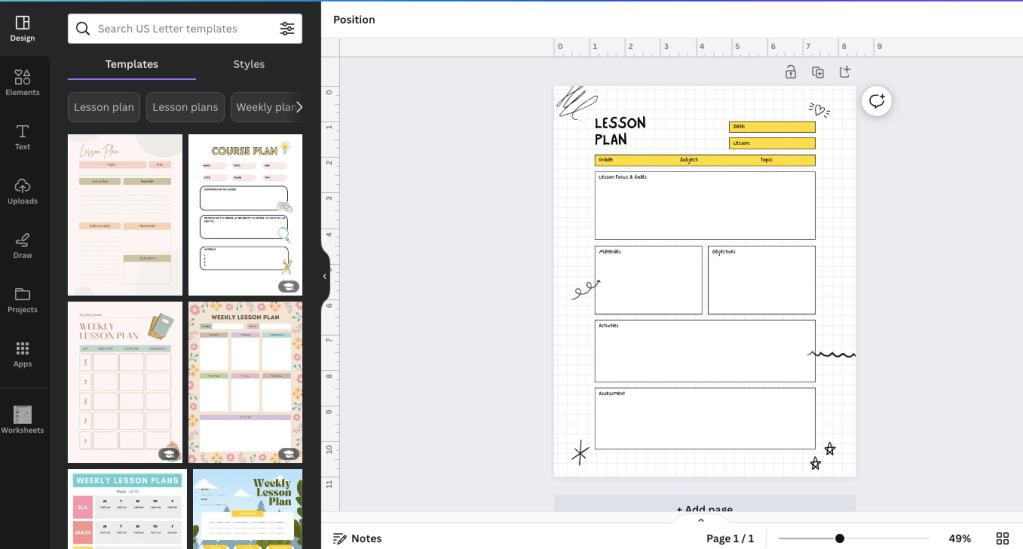
If you haven’t already started using it, Canva is a great tool for educators, and it’s free! You can create lesson plans, reading guides, handouts, printables, graphic organizers, posters, and presentations.

It has some limited funtionality and is best used to create resources that you will print out or that students will read. I prefer Google Docs and other Google programs for documents that I want students to edit or directly interact with.

When creating resources for teaching, as well as for Teachers Pay Teachers, I prefer a mix of MS Word, Google Docs and Forms, and Canva.

The best thing about Canva is their HUGE inventory of clip art and stock photography, which can really improve the overall look and appeal of your handouts, posters, and presentations.

By the way, this is NOT as sponosored post. I wish, ha ha! ๐Ÿ™‚